
Overview
Assigning certifications to users with a goal is a very common scenario within the Performance Center.
Using a goal allows admins to report on both users who have completed a certification and those who
have not yet completed the certification. For this scenario of one certification in a goal, there are two
reporting options for admins and managers. This document covers both options.
Goal Overview Dashboard
The Goal Overview Dashboard provides a nice, high-level overview of the progress of a goal. It is
especially good for presentation screen captures and a quick look at the general progress of a group of
users.
- Under Reporting, Select Goal Overview.
- On the filter menu (right side panel,) choose the organization you would like to review. You can
also filter on sub-organizations under the organizations you manage. Hover over the sub-organizations section to see the edit option.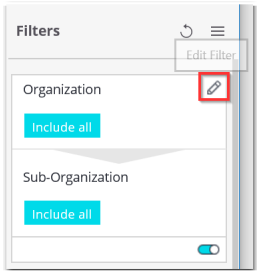
- On the filter menu, select the certification you would like to review.
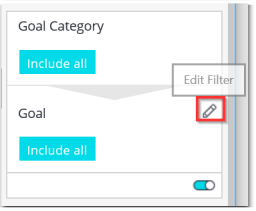
- In the main content area you will see the name of your certification(s) and two pie charts. The
top one represents the percentage of users in each of the statuses: Not Started, In Progress, and
Complete. The bottom pie chart breaks the In Progress users into percentage completed
categories. - You can drill down on the users in any of the sections by right clicking on the piece of the pie you
want and then choosing “View Details.”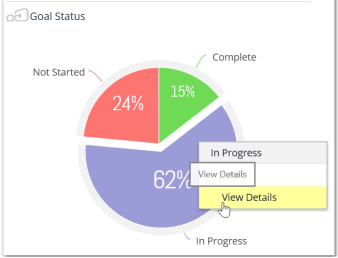
NOTE: There are a number of places where you can drill down for additional details. To do so, hover
over the option (link, pie chart section, etc.) and right click to see the options. - To export the details, use the option menu option in the main content area.
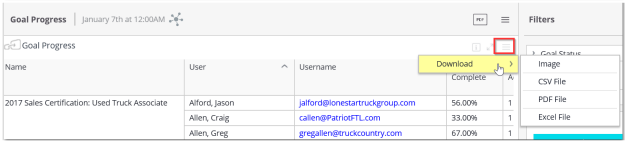
NOTE: To see the menu option to export the user details you must mouse over the table of results.
There is a menu option on the top bar, but the menu option that you need to export the results is
only visible when you hover over the results table
Team Certification Progress
The team certification progress is ideal for reviewing the certification status of individual users and
makes it easy to drill down to see what requirements they have and have not completed.
- Under Team Progress, click Team Certification Progress.
- Select a certification.
- Select your team. If you have direct reports AND organizations that you manage you will see the
option for direct reports or Organization Members. When reporting on organizations you will
have to report on each organization individually with this tool. - Check the “Only show users who have this activity on their development plan” option. This will
make sure that you only see users who have access to the certifications that are assigned to
them via a goal.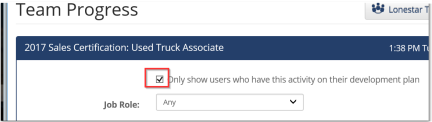
- You may export the search results by scrolling to the bottom of the screen and selecting one of
the export options.
- To review the progress of an individual user, click on the record for the user.
- To change teams, click on the Team in the upper right corner and change the team as necessary.
- To change certifications, click on the home button and select the Team Certification Progress
option to select a new certification.
Comments
0 comments
Article is closed for comments.